

Claude has grown from a simple chatbot into a full workspace for writing, research, coding, design, and everyday tasks. But knowing what Claude can do is very different from knowing how to actually use it well.
If you’re opening Claude for the first time, you’ve probably got questions. What do you even type? How do you write a prompt that gets a good result? Can you use Claude for free? How do writers, designers, and developers each get value from it?
What Is Claude?
Claude is an AI assistant built by Anthropic. You talk to it in plain language, and it helps with things like:
- Writing and editing content
- Brainstorming and research
- Analyzing documents and files
- Coding and debugging
- Creating documents, websites, and other files
- Reviewing and improving existing work
The single most important thing to understand: Claude’s output is only as good as the input you give it.
Getting Started With Claude
You don’t need any coding or AI background to start. Here’s the basic loop.
1. Create Your Account and Start Simple
Sign up, open a new conversation, and try something low-stakes first rewrite an email, summarize a document, explain a concept, or brainstorm ideas. Starting with a real task beats trying to learn every feature on day one.
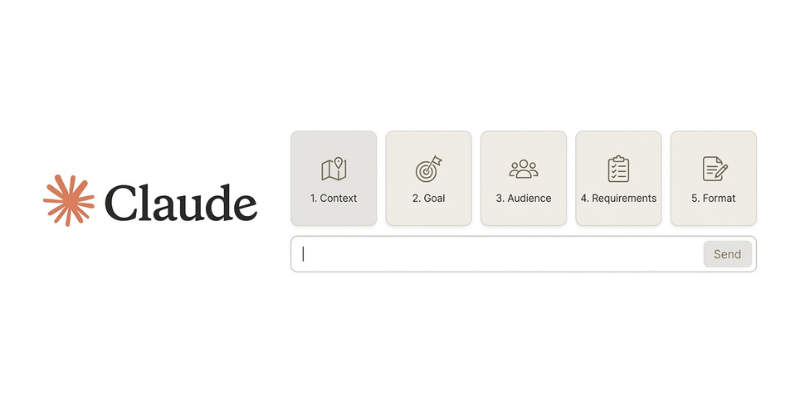
2. Build Prompts With Five Ingredients
A strong prompt usually includes:
- Context what you’re working on
- Goal what you want out of it
- Audience who it’s for
- Requirements must-haves and must-avoids
- Format structure, length, style
You won’t need all five every time, but the more you include, the less back-and-forth you’ll need later.
3. Feed Claude the Right Material
The more relevant context you hand over, the fewer corrections you’ll make afterward.
- Writers can share brand guidelines, past articles, target keywords, and audience notes.
- Developers can share error messages, existing code, and technical docs.
- Designers can share brand assets, screenshots, and target-audience details.
4. Treat the First Draft as a Starting Point
Don’t expect perfection on the first try — refine instead of restarting. A simple chain works well:
- Make this easier for beginners.
- Add a practical example.
- Cut the repetition.
- Tighten the intro.
- Review this for readability.
This is the core loop: Create → Review → Refine → Finalize.
Using Claude for Free
Claude has a free plan, though exact usage limits and features shift over time check Anthropic’s current pricing page for specifics.
The basic free workflow:
- Create an account and sign in.
- Start a conversation and enter your prompt.
- Upload files if the task needs them.
- Review the response.
- Refine until it’s usable.
What you can realistically do on the free plan:
- Writers: brainstorm topics, build outlines, edit drafts, summarize research
- Students: explain concepts, summarize notes, generate practice questions
- Developers: explain code, debug small issues, write functions
- Everyone else: draft emails, build checklists, organize information
- Why this matters: Free-plan limits change often, so don’t plan a workflow around an exact message count. Instead, work in stages Research → Outline → Draft → Review → Edit → Finalize so you’re not burning usage on full rewrites.
How to Write Prompts That Actually Work
You don’t need magic prompt formulas. You need clarity.
- Give context. Instead of Write an article about SEO, try: Write a beginner-friendly article on on-page SEO for small business owners simple language, practical examples, and clear H2 headings covering title tags, meta descriptions, and internal links.
- Say exactly what you want changed. Improve this is vague. Shorten the long sentences, cut repetition, and make the tone more conversational gives Claude something to act on.
- Show examples. If you want a specific voice, hand over a sample: Match this article’s tone and pacing, but don’t reuse its wording or ideas.
- Set real constraints. Word count, tone, reading level, structure, keywords to avoid the more boundaries you set, the less guessing Claude has to do.
- Use Claude as an editor, not just a generator. Ask: Review this as a strict editor. Flag repetition, unclear points, and anything a beginner might get lost on. Then decide which fixes to keep.
- Iterate instead of restarting. Don’t delete a flawed response and start over tell Claude what’s wrong with it. This is too technical — keep the structure but rewrite it for someone with zero coding background.
Using Claude for Writing Work
Claude fits into nearly every stage of a content workflow: research, briefs, outlines, drafts, edits, SEO planning, and repurposing.
The strongest approach isn’t “give Claude a topic, publish whatever comes back.” It’s using Claude to speed up the repetitive parts while you keep editorial control.
- Brainstorm smarter, not just faster. Give Claude your niche and audience, then narrow the results: Which five of these topics best match beginner search intent, and why?
- Outline before you draft. Build the structure first so you can catch gaps before you invest time writing the full piece.
- Let Claude edit, not just rewrite. Ask it to flag repetitive ideas, weak transitions, jargon, and inconsistent tone — that’s often more useful than a blanket rewrite.
- Repurpose content across formats. A blog post can become a LinkedIn post, a transcript can become an article, a case study can become a thread. Always review the repurposed version so it still sounds like you.
Using Claude Projects for Recurring Work
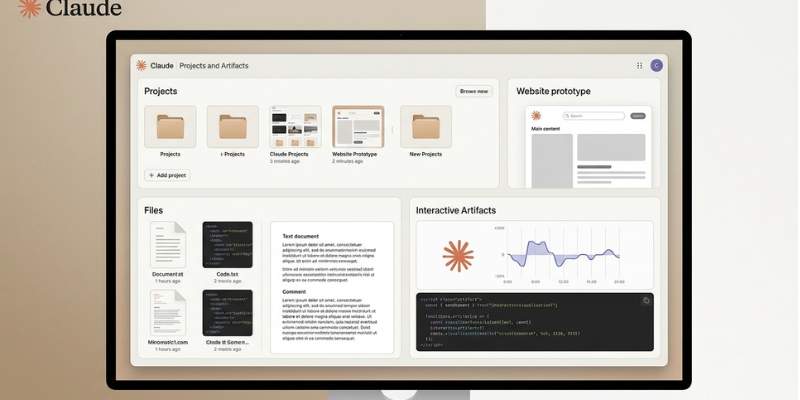
If you keep working on the same client, topic, or product, Projects save you from re-explaining context every time.
A Project gives you a dedicated space to store:
- Brand voice and guidelines
- Previous content or code
- Audience research
- Editorial or coding standards
- FAQs and approved terminology
A useful instruction structure: Role + Context + Rules + Process + Output.
For example: Act as an SEO editor for this site. Use a professional but conversational tone, prioritize accuracy and readability, avoid keyword stuffing, and never invent statistics. Outline before writing anything long-form.
Keep instructions clear and relevant they don’t need to be elaborate to work well.
Using Claude Artifacts
Artifacts let Claude build things you can work with beyond a normal chat reply — documents, websites, diagrams, small tools, and interactive components.
Instead of asking How do I build a portfolio site?”, ask Claude to build one directly: “Create a responsive portfolio site for a freelance SEO writer with a hero section, services, portfolio, testimonials, and a contact CTA — clean, modern, mobile-friendly.
From there, refine step by step:
- Make the hero section more professional.
- Add three case-study cards.
- Fix the mobile layout.
- Strengthen the CTA.
The loop is the same as everywhere else: Create → Review → Edit → Test → Refine.
Using Claude for Design
Good design output depends entirely on good design input. “Make a website” gives Claude almost nothing to work with.
Instead, explain the goal: Create a landing page for a project-management SaaS targeting remote teams. The goal is free-trial signups — clean interface, strong visual hierarchy, clear pricing, prominent CTA.
What to hand over for existing brands:
- Brand guidelines and color palette
- Screenshots of current designs
- Typography and component examples
- Target audience details
- What specifically feels off about the current version
Refine one thing at a time, not ten at once:
- Improve the visual hierarchy.
- Simplify the navigation.
- Make the CTA more prominent.
- Fix the mobile layout.
This makes each change easy to evaluate on its own.
Using Claude for Coding
You don’t need a specialized coding agent for every task — regular Claude handles plenty on its own, including explaining code, writing functions, finding bugs, refactoring, and writing tests.
For debugging, give Claude the actual error and context, not just “fix my code”: “This script throws a KeyError when processing customer data. Explain why, point to the relevant line, and suggest the smallest safe fix.”
For tests, ask Claude to think beyond the happy path: “Write unit tests covering normal input, empty input, invalid input, and edge cases — explain what each one checks.”Why this matters: Claude explaining why code fails teaches you more than a silent rewrite would. That’s the difference between fixing a bug and understanding one.
What Is Claude Code — and When Do You Need It?
Claude Code is Anthropic’s coding-focused agent for working inside real software projects, not just chat snippets.
The core difference is environment. Regular Claude sees whatever text or code you paste in. Claude Code can inspect an entire repository, search across files, run commands, make changes, and help verify them.
A typical Claude Code flow:
- Inspect this repo and explain how authentication works.
- Find out why users get logged out after refreshing the dashboard.
- Implement the smallest safe fix and add a regression test.
Getting Started With Claude Code
- Install it (check Anthropic’s current docs, since install steps can change):
npm install -g @anthropic-ai/claude-code - Move into your project folder and run
claudeto start. - Understand before you edit. Ask Claude Code to explain the project structure, stack, and key systems — with no changes yet.
- Plan before you build. For anything non-trivial, ask for an implementation plan first and review it before approving changes.
- Implement in small steps. Smaller, scoped changes are far easier to review than a full rewrite.
- Test everything. Ask Claude Code to run relevant tests and explain any failures rather than blindly patching more files.
- Review like a human would. Check which files changed, what was added or removed, and whether anything unrelated got touched.
CLAUDE.md: Give Claude Code Persistent Project Context
A CLAUDE.md file at your project root can store info Claude Code should always know tech stack, dev commands, coding conventions, and restrictions. Keep it focused; it’s a reference, not a manual.
Claude vs. Claude Code: Quick Comparison
| Task | Claude (Chat) | Claude Code |
|---|---|---|
| Writing & brainstorming | Excellent | Not the focus |
| Explaining code | Yes | Yes |
| Repository-wide analysis | Limited | Excellent |
| Modifying project files | Limited | Yes |
| Running dev commands | No | Yes |
| Full debugging workflow | Limited | Excellent |
Most developers use both — Claude for planning and explanations, Claude Code for hands-on repo work.
Using Claude for Business
The real value shows up when you move from one-off prompts to repeatable workflows.
- Marketing teams can build Projects for content, competitor research, and campaign planning.
- Sales teams can use Claude for proposals, meeting summaries, and follow-up emails.
- Operations teams can use it for SOPs, internal docs, and process analysis.
Before uploading anything business-related, understand your organization’s privacy policies. Avoid sharing passwords, API keys, private credentials, or sensitive customer data — and set clear internal rules for what’s off-limits to AI tools.
Workflows by Role
| Role | Practical Workflow |
|---|---|
| Students | Notes → Summary → Practice Questions → Explanation → Revision |
| Freelance writers | Research → Brief → Outline → Draft → Edit → SEO → Repurpose |
| Designers | Brief → References → Concept → Prototype → Feedback → Refinement |
| Developers | Requirement → Repo Analysis → Plan → Implementation → Testing → Review |
| Business owners | Goal → Context → Project Setup → Process → Review → Reuse |
Mistakes That Quietly Ruin Your Results
- Vague prompts. Write something about marketing” leaves Claude guessing.
- Too little context. No audience, brand, or goal means Claude fills the gaps itself — and often gets it wrong.
- Accepting the first draft. It’s a starting point, not a finished product.
- Overloading one prompt. Research, writing, SEO, and editing don’t need to happen in a single request — break big projects into stages.
- Skipping fact-checks. Always verify statistics, product specs, technical claims, and anything legal or medical.
- Publishing without a human pass. Add your own insight, experience, and verification before anything goes live.
- Letting code changes go unreviewed. Use Understand → Plan → Implement → Test → Review, not prompt and accept everything.
Ready-to-Use Prompt Templates
- Writing: Act as an experienced content writer. Write a beginner-friendly article about [topic] for [audience]. Use short paragraphs, descriptive headings, and a conversational tone.
- SEO: Act as an SEO strategist. Analyze the search intent behind [keyword] and build an outline that fully answers it without keyword stuffing.
- Editing: Edit this for clarity. Keep the meaning, shorten long sentences, cut repetition, and make the tone more natural.
- Design: Design a landing page for [product] targeting [audience]. Primary goal: [goal]. Include [sections]. Prioritize hierarchy, readability, and a clear CTA.
- Coding review: Review this code as a senior developer. Explain what it does and flag risks before suggesting a rewrite.
- Claude Code debugging: Investigate this bug without modifying files yet. Trace the code path, identify the root cause, and propose a fix. Implement only after I approve it.
A Simple Path to Getting Better at This
You don’t need to learn everything at once. A natural progression looks like:
- Chat basics questions, summaries, edits, brainstorming
- Better prompting context, examples, constraints, iteration
- A real project pick something you actually need built
- Artifacts websites, tools, documents, diagrams
- Claude Design for anything visual
- Claude Code repo analysis, planning, implementation, review
- Your own workflow reusable Project instructions and prompt templates
At that final stage, you’re no longer just using a chatbot you’re running an AI-assisted system built around your actual work.
The Bottom Line
Getting good at Claude isn’t about memorizing prompt formulas. It’s about treating every interaction like a real collaboration: give it context, review what comes back, and tell it exactly what to fix.
The natural progression is Chat → Better Prompts → Projects → Artifacts → Design → Claude Code → Your Own Workflow.
For writers, that means less time on research and repetitive edits. For designers, faster prototypes. For developers, faster debugging and safer changes.
But none of it replaces judgment. Claude speeds up the repetitive work you’re still responsible for accuracy, originality, and the final call.